|
TiledViz
|
 |
|
TiledViz
|
|
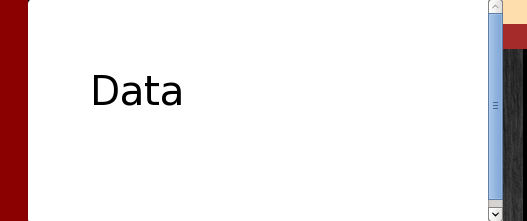
The tiles may contain an image, a video, or other kind of visual data.
On the left side of the tile, the black vertical zone enables to interact with the environment. It will be called the “hitbox” in the following.
Its color changes according to the current action :
| Color | Meaning |
|---|---|
| Dark red | The mouse is over the tile (only with desktop browsers). |
| Red | The tile is selected to be swapped with another one. |
| Green | The tile is selected for zoom mode or master-slave mode. |
On the right side, a vertical blank zone is designed to show the stickers of the tiles. These are colored squares representing filters or tags given to the tile. Each time they are shown, a legend is also displayed at the top of the screen.
At the bottom left corner, a hand-shaped icon is dedicated to drag and drop actions.
Its color changes according to the current state of the tile:
| Color | Icon | Meaning |
|---|---|---|
| White |  | The tile may be drag-and-dropped. |
| Green |  | The tile is currently draggable. |
| Gray |  | Drag-and-drop is not available at this time. |
For the movements, the animation and animation speeds can be defined in the config file.
The tiles are not exactly swapped, rather, the second one is moved next to the first one, and the neighbouring tiles are re-arranged to preserve the coherence of the data. This action can be undone with the “Undo” button of the Global menu.
| Action | Behaviour on desktop browser | Behaviour on WildOS |
|---|---|---|
| 1. Hover over the first tile. | The hitbox becomes dark red. | The hitbox stays black (the cursor is not detected by design). |
| 2. Click on the hitbox. | It becomes red. | It becomes red. |
| 3. Hover over the second tile. | Its hitbox becomes dark red. | Its hitbox stays black. |
| 4. Click on the hitbox of the second tile. | Done ! | Done ! |
This can be done when selecting the little hand at the bottom left corner of the tile and moving it to its destination. It is different from the first case, as two tiles will be swapping their position.
When drag and dropping a transparent tile, the tile is ovelapped on the underlaying tile, enabling the user to compare different but related data.
Options in config_default.js as well as in the option menu enable to unload the tile when dragging (“Move only a border”) or move without animation.
The two last options in the individual menu of each tile allow the user to swap the line (resp. column) of this tile with another one, by clicking on the icon of the tile in the destination line (resp. column). See documentation on these icons (in the Tile menu section) for more information.