|
TiledViz
|
 |
|
TiledViz
|
|

The menu lies on the left side of the interface. For each option or item in the global menu, the tag menu or the tile menu, the icon will appear white if the option is not selected or used, and grey if it is selected. To select a menu item, you have to click on it. If you entered an option and do not wish anymore to go further with it, clicking on the grey icon will exit it.
Type keywords in the research bar, they will be matched with a list of keywords extracted from the meta-data of the tiles. Auto-completion is enabled for this field. The “&” can be used to combine several keywords. Upon hitting “Enter”, the tiles corresponding to the keywords are moved to the top, and little stickers appears on their right side to show to which keyword(s) they fit. The legend for the colors is shown at the top right of the interface.
Filter node through tags and zoom on filtered nodes
Launch a simple research
type the keyword in the search bar and press enter :
the matchiang nodes will move to the top of the grid, the other ones will stay at the bottom and become darker.
Launch a multiple research
type the keywords in the search bar, using the symbol "&" as separator ("pressure&heat" to search for both terms) :
a legend with different colors will be shown at the top of the screen.
Clean search : click on the Eraser icon on the upper-right corner.
This filter use Jquery UI modules : autocompletes, see https://jqueryui.com/autocomplete/ for details
Click on the icon clear all the selections on the session.
Click on the icon will reorganize the grid and show the next page of tiles below.

Shows little rotation icons for each tile (only activated with a touch table or a tablet if it is detected).
Refresh all the nodes with their original sources.

Tags are representation of metadata of each tile.
You can sort, select, hide or delete tiles with them in this menu. And you manage them : add or remove tags
See below in Tags menu section.
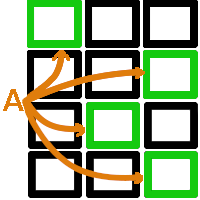
Actions are specific functions programmed with each tilesets.
Action functions are programmed in the case python script for CONNECTION TileSets only.
You can programm change of the source and with the first button it will force TiledViz to update
the list of nodes and the metadata (title, tags, ...).

All zoom functions on tiles : Global, master-slave, fast zoom.

All management functions : Draws, save, options, help.

Clicking on this icon displays the title (or name) of each tile at their upper right corner, if this feature is not activated.
In this menu, you can write information or draw on each tile. You can sort with column or lines with one tile.
See below in Tile menu section.
Cancel/Redo and buttons

Up and Down buttons : all the grid will switch a line.
For up button, the first line will go to be the last one and for down it will be the last one wich appear at the first line.